Hyperliquid liquidation happens when the mark price reaches your position's liquidation price: the position is closed and the margin behind it is lost. Your leverage decides how close that price sits to your entry, and the higher the leverage, the smaller the move it takes to wipe you out.
This guide goes deeper than the Hyperliquid Telegram bot guide, which covers setup and your first trade. Here the focus is risk: how leverage works, how isolated and cross margin change what you can lose, how to add margin, and how to use auto close so a stop loss gets you out before liquidation does.
Hyperliquid Leverage Explained
On a perps trade there are two numbers that matter:
- Size is the full position: how much BTC, SOL or another asset you are exposed to.
- Margin is the USDC you put up to hold that position.
Leverage is the ratio between them. A position of about $2,500 at 5x needs about $500 of margin. Thor's order ticket makes this explicit: size is the position, not the margin.
Leverage multiplies your profit and loss relative to your margin. At 5x, a 1% move in the price is roughly a 5% gain or loss on your margin. At 20x, the same 1% move is roughly 20%. That is why Thor shows profit and loss both in dollars and as ROE, the return on the margin you put up.
Choosing leverage in Thor
On the order ticket you set leverage with the slider or the chips (2x, 5x, 10x, 20x, Max). Each market has its own maximum, shown next to the market name; BTC shows 40x in the example below. Just because a market allows high leverage does not mean you should use it.
How the Liquidation Price Works
Your liquidation price is the price at which your remaining margin is no longer enough to keep the position open under Hyperliquid's margin rules. Hyperliquid sets those rules, not Thor. The key points:
- Long positions are liquidated if the price falls to the liquidation price. Short positions are liquidated if it rises to it.
- Higher leverage moves the liquidation price closer to your entry. Lower leverage pushes it further away.
- Liquidation is checked against the mark price, a fair price for the market, rather than the last trade.
- Funding is paid or received while the position is open. When you are on the paying side, a position held for a long time can slowly drift closer to liquidation even if the price goes nowhere.
 Thor Trading Bot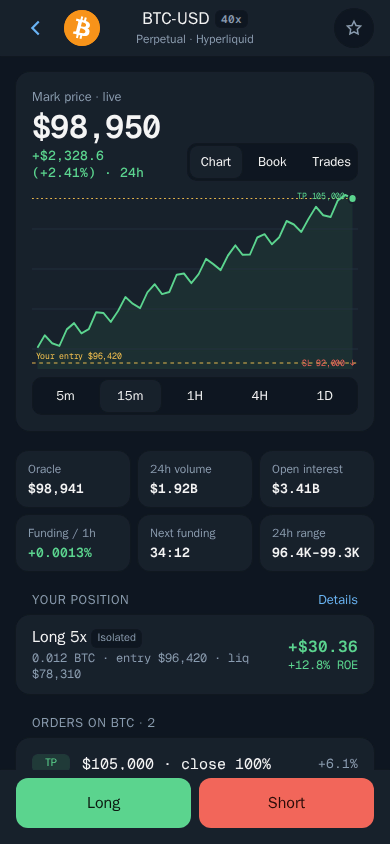
On a market screen in Thor you can see the live mark price, the oracle price, funding per hour and the time to the next funding payment. Under Your position, the example shows a Long 5x on BTC with an entry of $96,420 and a liquidation price of $78,310. The same numbers appear when you open the position. Always check the liquidation price on the Review screen before you confirm a trade.
Warning: If the price reaches your liquidation price, the position is closed and its margin is lost. With leverage you can lose all the margin in a position, and markets can move through your liquidation price in seconds.
Isolated vs Cross Margin
The pillar guide gives the short definitions. Here is how the choice plays out in practice:
| Isolated | Cross | |
|---|---|---|
| What backs the position | Only the margin you assign to it | Your whole perps balance |
| Worst case on liquidation | That position's margin | Much more of your perps balance |
| Liquidation price | Fixed by that position's margin | Moves with your whole account |
| Effect on other positions | None | A loss in one eats margin others rely on |
| Best for | Single trades with a clear risk limit | Experienced traders managing several hedged positions |
With isolated, you decide up front how much can be lost, and you can still add margin later if you choose to. With cross, a losing position can keep borrowing from the rest of your balance. That can save a trade from a short wick, but it also means one bad trade can drag down everything in your perps account. On the Perps home screen, Margin used shows how much of your account is already tied up.
For most people, isolated plus a stop loss is the simplest way to know exactly what is at risk.
How to Add Margin on Hyperliquid
Adding margin lowers your effective leverage and moves the liquidation price further away (see Manage perps positions).
- Open the position from Perps.
- Tap Margin.
- Choose Add (or Remove to take margin out).
- Enter the amount in USDC.
- Check the before and after: margin, liquidation price and effective leverage.
- Confirm.
Thor Trading Bot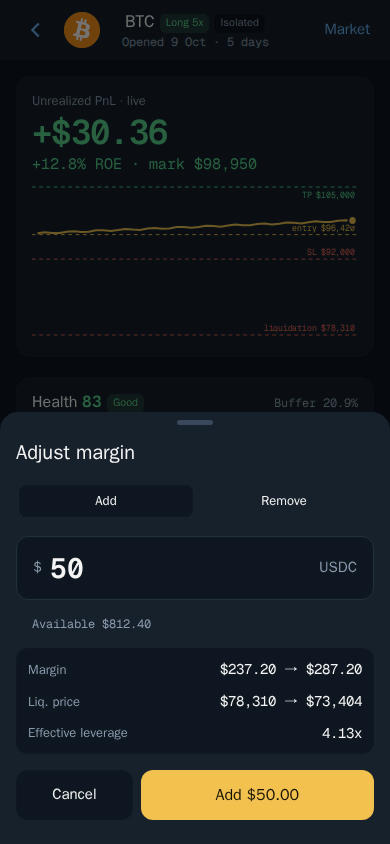
In the example, adding $50 to a 5x long takes the margin from $237.20 to $287.20, moves the liquidation price from $78,310 down to $73,404 and drops effective leverage to 4.13x. Removing margin does the opposite and brings the liquidation price closer.
Tip: Adding margin to a losing trade is putting more money behind a position that is going against you. Do it because your plan says so, not to avoid taking a loss. Often, closing part of the position is the better move.
Auto Close: Take Profit and Stop Loss on Perps
Auto close adds a take profit and a stop loss when you open the trade. In Thor they are set as a percentage of your margin, using chips such as +25%, +50%, +100% and +200% for take profit and -10%, -25%, -50% and -75% for stop loss. The ticket shows the trigger price and the dollar amount for each.
Because they are a percentage of margin, leverage changes how far the price has to move. At 5x, a -25% stop loss triggers after a move of roughly 5% against you. At 20x, the same -25% triggers after roughly 1.25%.
- Auto close triggers on the mark price and closes at market, so in fast moves the fill can be worse than the trigger.
- Set your stop loss well before your liquidation price. A stop that sits right next to liquidation gives you almost no protection.
- You can edit the take profit and stop loss on an open position at any time.
Closing All or Part of a Position
- Open the position.
- Under Close position, choose Market or Limit.
- Pick 25%, 50%, 75% or 100%.
- Check the amount closing, the estimated price, realized profit or loss and fees.
- Tap Close.
Thor Trading Bot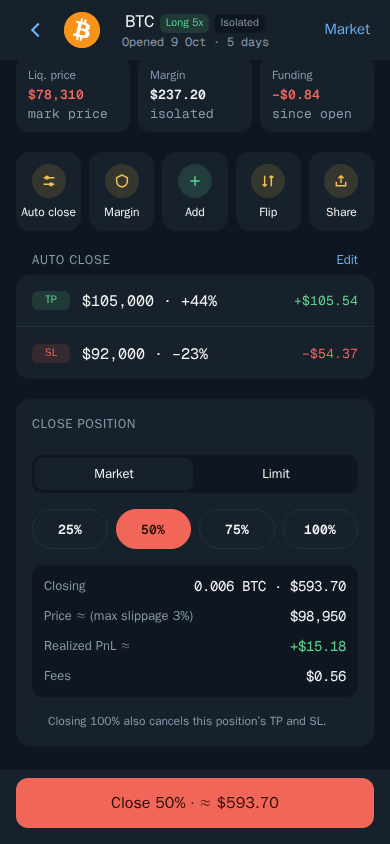
Closing part of a position is one of the simplest ways to cut risk: you bank some profit or take some loss and the rest keeps running. Closing 100% also cancels that position's take profit and stop loss.
A Liquidation Checklist
- Read the liquidation price on Review before you confirm.
- Use lower leverage on volatile markets.
- Default to Isolated margin.
- Turn on Auto close with a stop loss well before liquidation.
- Check funding before holding a position for days.
- Never fund perps with money you need for anything else.
Perps Fees and the Subscription
Thor charges a 0.05% builder fee per perps trade, on top of Hyperliquid's own fees, and shows it before you confirm. The Thor subscription does not cover perps, and perps trades do not earn cashback or referral rewards. Bridging funds into Perps has no Thor fee.
The subscription is for spot: $100 for 30 days cuts Thor's flat 0.5% fee on spot trades and bridging to 0% on Solana and every EVM chain, and it breaks even at $20,000 of spot volume in 30 days. That 0.5% is already half the 1% many Telegram trading bots charge. See Fees and Subscription.
Warning: Perps are high risk. Funding rates, margin rules and liquidation are set by Hyperliquid. Perps are not available in some countries and regions, and Thor blocks access where they are restricted.
Trade With a Plan
Open Thor on Telegram, go to Home, then Perps, and try a small position at low leverage with auto close on. Watch how the liquidation price moves as you change leverage on the ticket before you commit. If you want to bet against a coin, read how to short crypto on Telegram, and to understand USDC margin across Thor, see the USDC trading bot guide.
Frequently asked questions
What happens when you get liquidated on Hyperliquid?
Your position is closed and the margin backing it is lost. Liquidation rules are set by Hyperliquid. With isolated margin only that position's margin is lost; with cross margin your whole perps balance backs the position.
How is the Hyperliquid liquidation price calculated?
Hyperliquid sets the margin and liquidation rules. In practice, the higher your leverage, the closer the liquidation price sits to your entry. Thor shows the exact liquidation price on the Review screen and on the open position.
Is isolated or cross margin safer?
Isolated limits the loss to the margin in that one position, so it is usually the safer default. Cross lets your whole perps balance back the position, which can delay liquidation but puts more of your money at risk.
How do I add margin to a Hyperliquid position?
In Thor, open the position, tap Margin, choose Add, enter an amount and confirm. The screen shows your new margin, the new liquidation price and the new effective leverage before you confirm.
Does a stop loss prevent liquidation?
A stop loss set well before your liquidation price usually closes the trade first. It triggers on the mark price and closes at market, so in very fast moves the fill is not guaranteed.
What leverage should a beginner use on Hyperliquid?
There is no safe number, but lower leverage puts your liquidation price further away. Starting low, for example 2x or 3x, with isolated margin and a stop loss gives you more room while you learn.
Step-by-step in the Docs
- Open a perps trade: Pick a market, side, size and leverage.
- Manage perps positions: Close, add margin or change your targets.
- Perps: get started: Trade long or short with leverage.