Manage your orders
See every open and past order in one list, then edit, pause or cancel it.
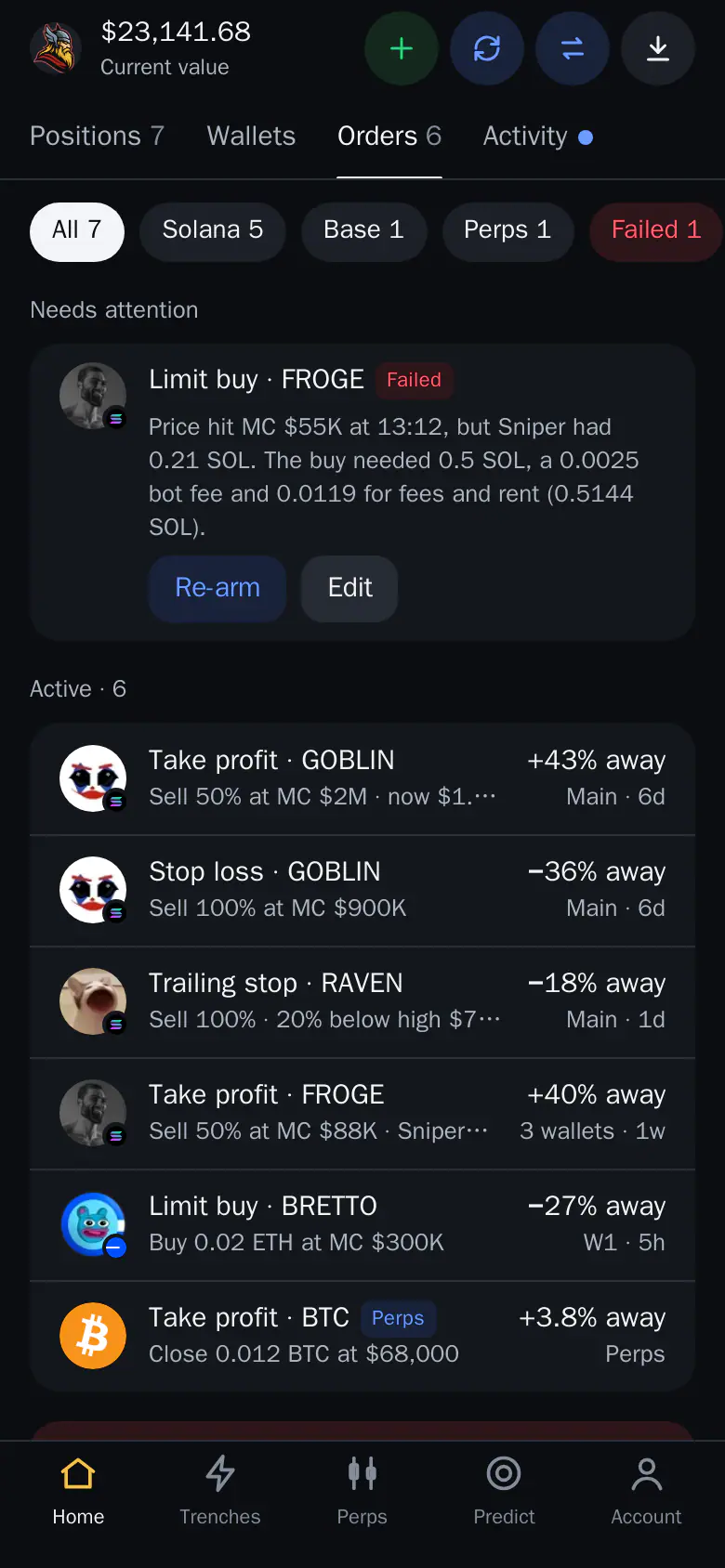
Every limit buy, limit sell, take profit, stop loss and trailing stop lives in one list. Each order shows how far the price is from its trigger.
Where to find them
- Mini App: Home > Orders tab, or Account > Orders and automation > Orders. The second place is the Automation hub.
- Bot:
🚧 Limit Orders.
The list covers every chain and Perps, with chain chips and a Failed chip. A failed order stays on top with the reason and Re-arm or Edit. A failed take profit or stop loss also offers Sell now.
Filter by Manual, Auto sell or Trenches timeout.
Order types
| Type | What it does |
|---|---|
| Limit buy | Buys when the price, market cap or % from entry reaches your trigger. See Buy when |
| Limit sell | Sells at your trigger |
| Take profit | Sells when the price rises to your target. See Take profit and stop loss |
| Stop-loss | Sells when the price falls to your limit |
| Trailing stop-loss | Follows the high and sells on a drop. See Trailing stop |
Edit or cancel an order
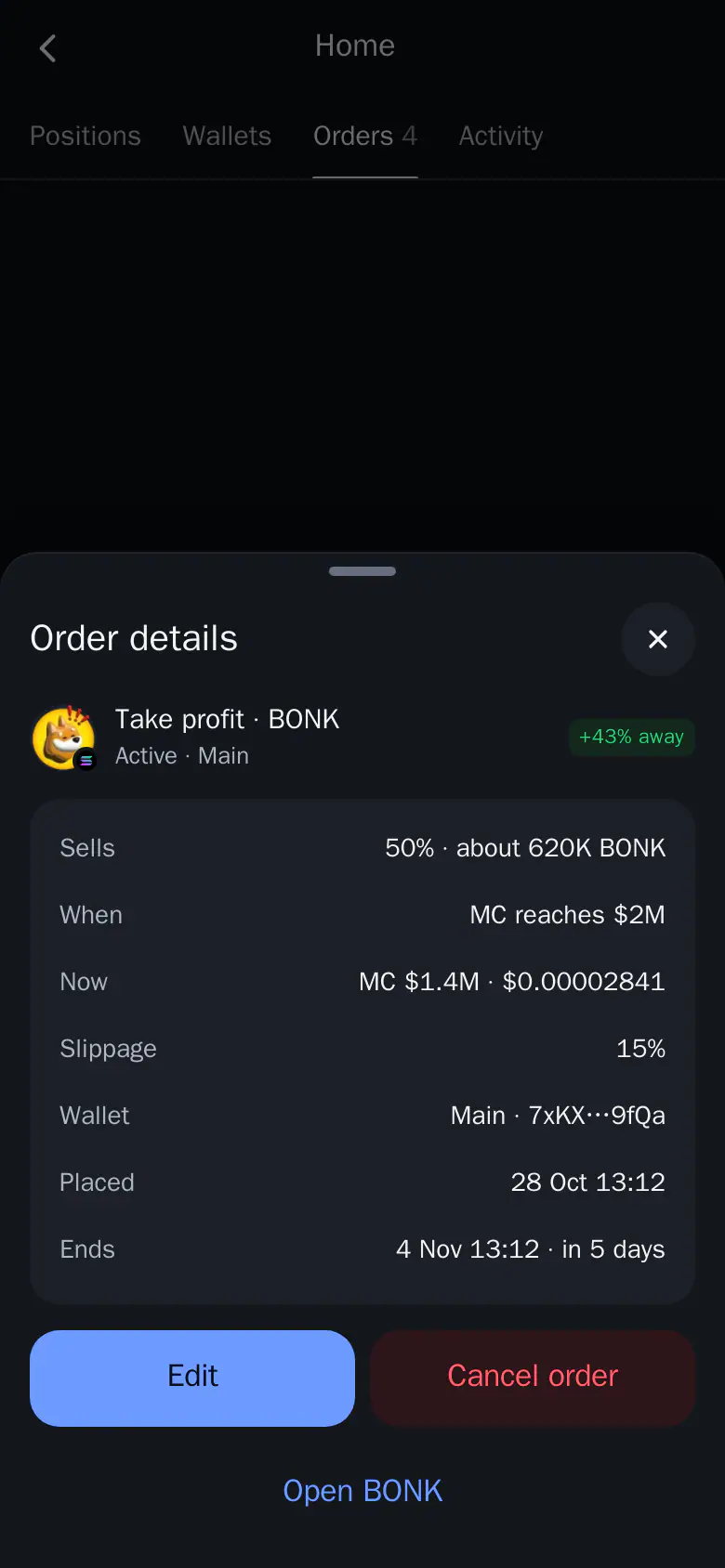
- Tap the order to open its details: what it sells, when it fires, the price now, slippage and wallet.
- Change the trigger, amount, sell %, slippage or Expires in, then tap Save changes. Or tap Cancel order.
Use the switch on an order to pause it and turn it back on later. A filled order in the history shows when it fired, what was sold and what you got.
Tidy up
- Clean up expired removes orders that ran out.
- Cancel all orders cancels every order, Auto sell orders included. Hold the button to confirm. This can't be undone.
Tip: Orders on a coin also show on its coin sheet. Tap one there to edit it in the order sheet.