Trade status and notifications
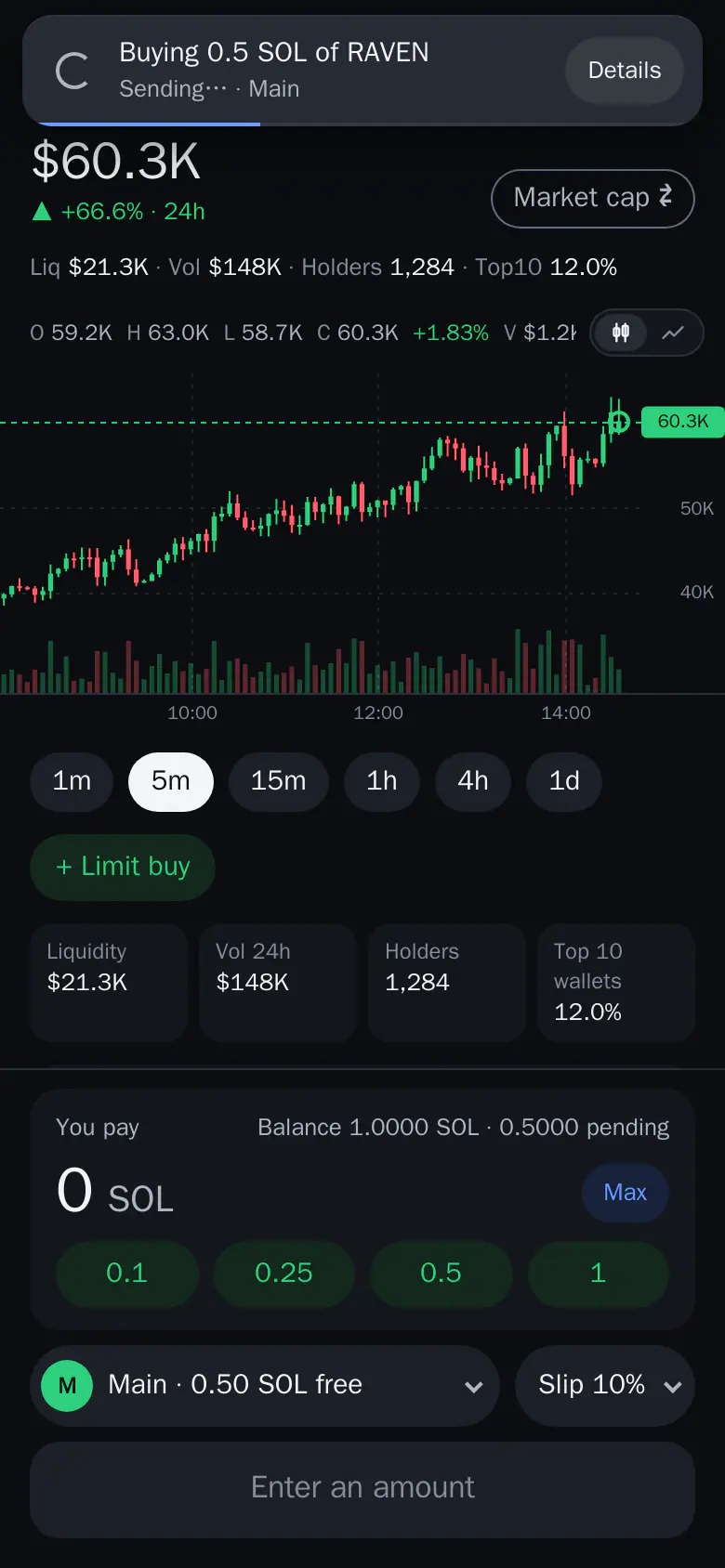
Follow every trade with a toast that goes from pending to landed or failed, and open Details any time.
Every trade you make in the Mini App shows a toast at the top of the screen. You never have to wait on a status screen: carry on and the toast tells you what happened.
The three states
- Pending: the toast shows the trade sending.
- Landed: a green toast shows the coins you got and how fast it landed.
- Failed: a red toast stays until you close it, with Retry.
Tap a toast, or the trade in Home > Activity, to open Details. For a trade that landed it lists what you paid and got, your entry, what you now hold, the fees and any Auto sell orders. Auto sell orders open in the order sheet.
If a trade fails
Retry sends the same trade again. Tap the toast to see what was tried, why it failed and what it cost. The next step depends on the reason: Review trade reopens it with a fresh quote, or you can add funds, buy less or raise the priority fee. Usually the price moved more than your slippage or the network was busy. Only the network fee may have been charged. See Troubleshooting.
Notifications in the bot chat
- Trades you make in the bot chat are confirmed in the chat.
- Fills, alerts and copy-trade messages always arrive in the bot chat.
- Turn on trade alerts in Trading defaults to also post order fills, copy trades and similar events to the chat.
Note: Trades you make in the Mini App show as toasts and in Activity. They don't post to the chat.
Your full history of trades, orders and sends is in Activity.