Auto sell
Add take profit, stop loss and trailing stop to every new buy, wherever you buy.
Auto sell adds your take-profit, stop-loss and trailing-stop orders to every new buy, wherever you buy: the bot, the Mini App, limit buys and more. Set it once and no new position goes unprotected.
Where to find it
- Mini App: Account → Orders and automation → Auto sell.
- Bot: Settings →
⚡ Auto Sell.
How to set it up
- Pick the chain and turn Auto sell on.
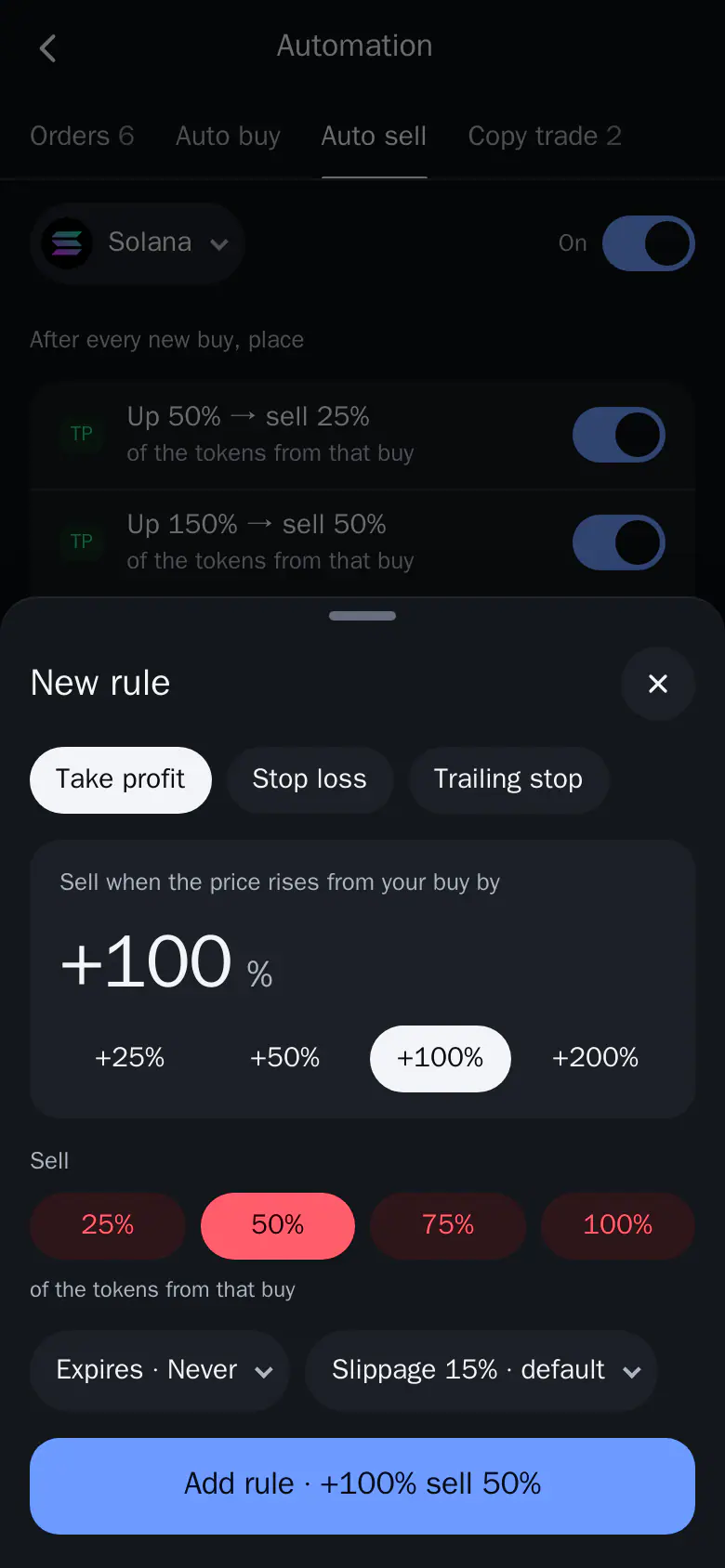
- Tap Add rule, then choose Take profit, Stop loss or Trailing stop.
- Set the move: the rise from your buy, the drop from your buy, or the drop from the highest point.
- Pick how much to sell, then Expires and Slippage if you want to change them.
- Tap Add rule. The list shows what Thor places after every new buy.
 Thor Trading Bot
 1234
- Add rule. Opens the New rule sheet.
- Take profit. Sells when the price rises from your buy.
- Trailing stop. Follows the highest price and sells on a drop from it.
- 50%. The share of the tokens to sell when the rule fires.
A trailing stop can also have an Arm at rise, so it starts trailing only after the price has gone up that much.
Example
| Rule | Trigger | Sell |
|---|---|---|
| Take profit | +100% | 50% |
| Take profit | +300% | 100% |
| Trailing stop | -30% from the peak | 100% |
Options
- Sell mode (Solana, shown as Size from):
- Per buy (Each buy): each buy gets its own orders for its own tokens. Buy three times, get three sets of orders.
- Full balance: targets sell a % of your whole balance of the token. 100% sells everything.
- Average repeat buys (DCA) (Solana): repeat buys move the orders instead of adding new ones, and triggers follow your new average entry.
- MCap strategies: other targets by market cap at buy time. The first range that fits wins. No match uses the rules above.
- Clear all removes every rule.
Good to know
- Auto sell works only for new buys, not positions you already hold.
- Orders already placed stay. Edit or cancel them in Home → Orders, filtered by Auto sell. See Manage your orders.
- When a rule fires while you are on another screen, a green toast appears and the event is added to Activity. A failed order shows a red toast with Details.
- Settings are per chain.

